Create a User
To create a new user for Orchestra Monitor, follow these steps:
- Open the web interface and log in with an account that has administrator privileges.
- Select the "User management" subitem located under "Administration" in the navigation bar.
- From the scenario dropdown box at the top of the panel, select "Runtime" to access the view for web frontend users.
- Click the "Create new user" button to open the user creation dialog. This dialog consists of several tabs, as depicted in the following figure.
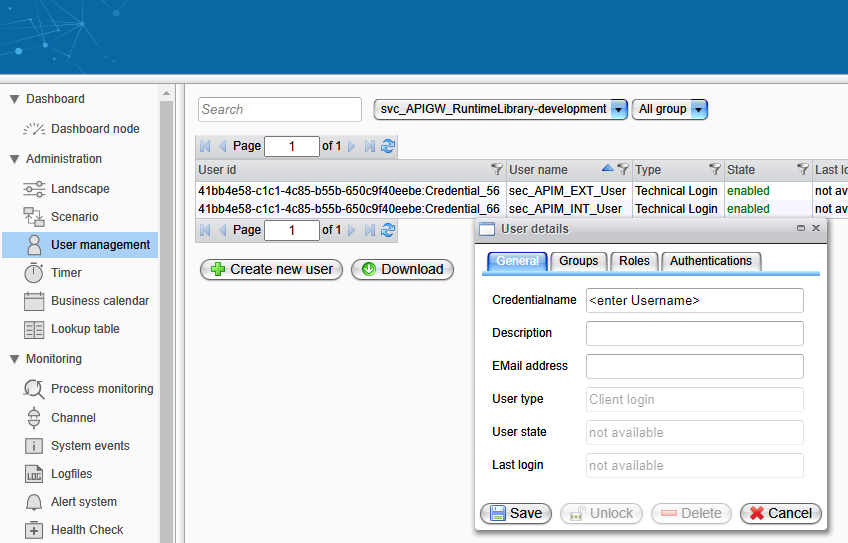
In the first tab, "General", enter the following information:
- Username
- User description
- Email address
Additionally, the dialog displays some status fields that provide information about the user state and the last login time.
| Attribute | Description |
|---|---|
| Credential Name | The name that uniquely identifies the user. |
| Description | A descriptive text including information about the user's role. |
| Email Address | The email address of the user. |
| User Type | Defines the type of the user. The following user types are supported: - Internal: A user that is allowed to work with the Orchestra Monitor. For user credentials used for scenarios, the following types are available: - Client Login: Credential information used to authenticate a client against Orchestra. - Technical Login: Credential information used by Orchestra to access other systems. |
| User State | Information about the current state of the user. If the state is enabled, the user is allowed to work with the system. If the state is locked, the user account cannot be used and must be re-activated by an administrator. |
| Last Login | Holds the timestamp of the last valid login. |